How to build your own home cloud with Nextcloud and a NAS
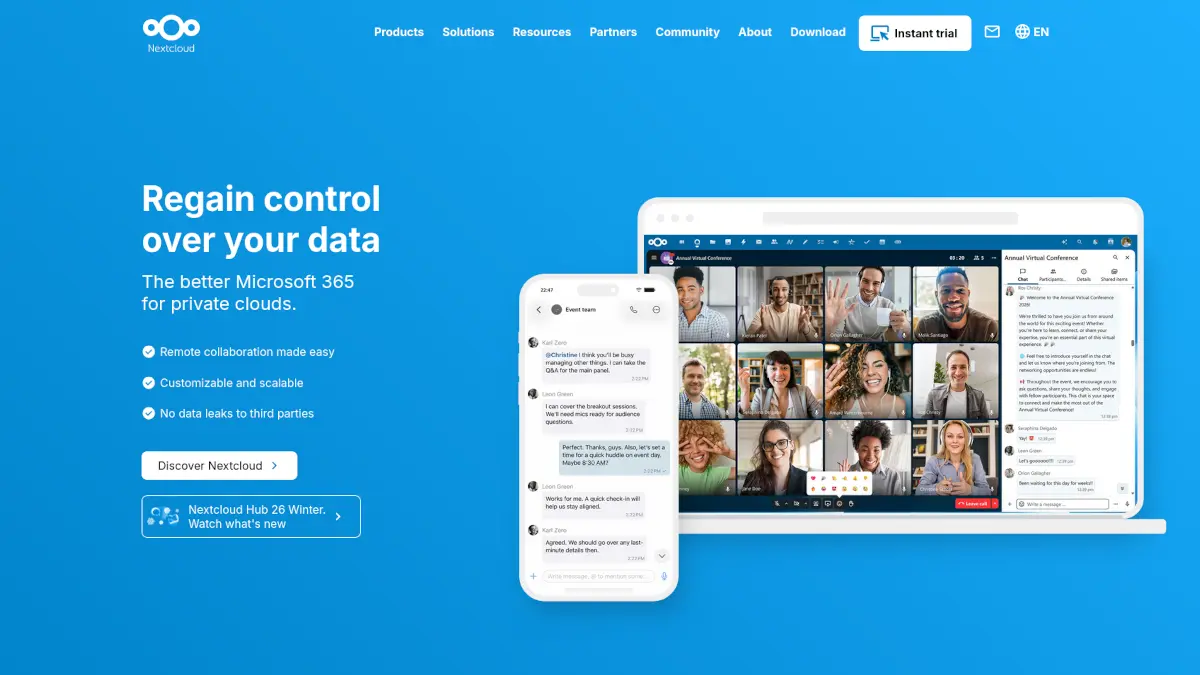
Are you tired of paying monthly subscription fees for cloud storage services like Google Drive, Dropbox, or iCloud? Do you worry about the privacy of your personal photos and documents sitting on someone else's servers?
Building your own home cloud is easier than you might think. In this guide, we'll explain in simple terms how you can set up your personal cloud using Nextcloud and a NAS (Network Attached Storage).
What you will need
- A NAS (Network Attached Storage): Think of a NAS as a mini-computer with hard drives that connects directly to your home router. It stays on 24/7, making your files accessible whenever you need them. For a reliable, beginner-friendly setup, we highly recommend this NAS enclosure. It's robust, easy to configure, and perfect for a home storage solution.
- Nextcloud Software: Nextcloud is a completely free and open-source software that turns your NAS into a cloud service. It gives you an interface very similar to Google Drive or Dropbox, but you own the hardware and the data.
- Hard Drives: You'll need to purchase hard drives specifically designed for NAS (like WD Red or Seagate IronWolf) to put inside your NAS enclosure.
Step 1: set up your NAS hardware
First, unpack your NAS enclosure and install your hard drives into the designated bays. Connect the NAS to your home router using the provided Ethernet cable, and plug it into a power outlet.
Turn the device on. Most NAS brands provide a simple web link or a discovery app to help you find your new NAS on your home network. Follow their initial setup wizard to create your administrator account and format the hard drives.
Step 2: install Nextcloud
Once your NAS is up and running, it's time to install Nextcloud.
Modern NAS systems come with an "App Store" or "Package Center" built right into their web interface.
- Log into your NAS dashboard.
- Open the App Store/Package Center.
- Search for "Nextcloud".
- Click Install.
The NAS will automatically download and set up the Nextcloud software for you. It's truly as simple as installing an app on your smartphone!
Step 3: configure your personal cloud
After installation, click on the Nextcloud icon to open its interface. You will be prompted to create your admin account for your new cloud.
Once logged in, you'll see a clean, familiar dashboard. Here you can:
- Create folders and upload files.
- Create different user accounts for your family members so everyone gets their own private storage space.
- Install apps from the Nextcloud ecosystem (like calendars, contacts, and document editors).
Step 4: access your files from anywhere
The final piece of the puzzle is accessing your files from your phone or laptop.
Download the free Nextcloud app on your iOS or Android device, or install the desktop sync client on your Windows, Mac, or Linux computer. Enter your NAS's local IP address or setup remote access (which most modern NAS interfaces can help you configure easily), log in with your account, and instantly your photos, videos, and documents will start syncing.
Why do this?
By pairing a solid NAS with Nextcloud, you eliminate recurring subscription fees forever. But more importantly, you regain total privacy. Your sensitive documents, family photos, and personal data never leave your physical home unless you choose to share them.
Take control of your digital life today and build a cloud that truly belongs to you!